Billing and credits
Review your subscription, your usage and what happens when your AI credits run out.
Open Settings → Billing in the organization you want to manage. Changes require billing permissions.
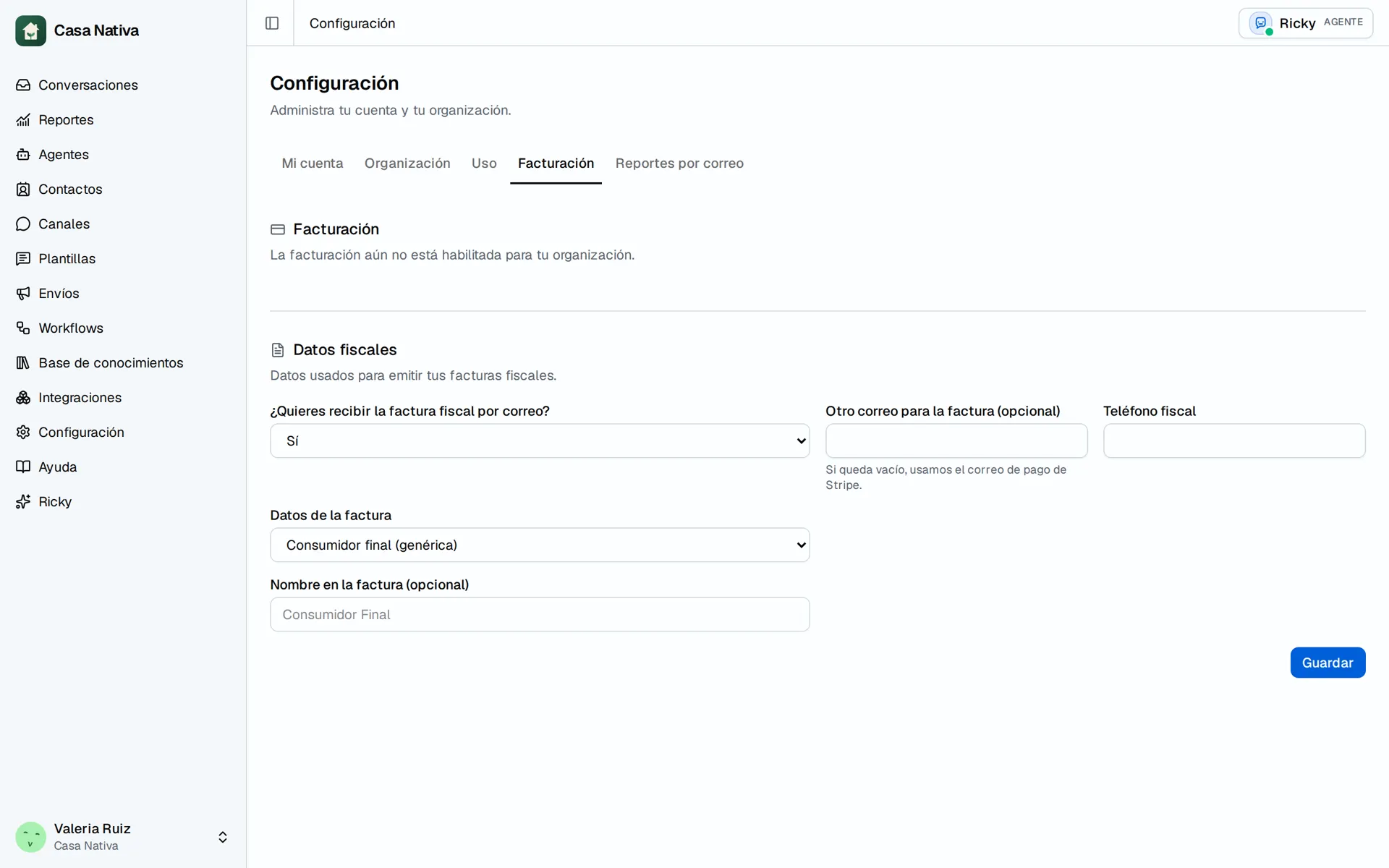
Demo organization: Casa Nativa. Interface shown in Spanish.
Review or choose a plan
If you don't have a subscription yet, the section shows the plans available to your organization. Review the price and terms before continuing to payment.
If you already have a subscription, check its status and use the option to manage billing. Ricky opens the Stripe portal. Review the available operations and when they take effect before confirming them.
See Pricing for general sales information. The plan and terms shown in your organization are the ones to review when you subscribe; don't assume every account has the same offer.
Review your usage
With a subscription, the section shows the usage available on your plan. Check the period when comparing figures: AI credits and message count are not the same measure.
If usage doesn't appear, don't read it as zero. Check again and contact support if the problem persists.
Decide what happens when credits run out
- Find Allow extra AI credits.
- Turn it on only if you accept that additional credits are charged at your plan's overage price.
- If you turn it off, choose what to do When credits run out: leave unassigned or assign to someone on the team.
- Select Save policy and wait for the confirmation.
If you choose a person, agree with them on how they'll handle those conversations. Don't confuse this policy with changing the agent's instructions.
Tax details
Review the tax details section on this same tab and save the details for the right organization. Check that the details are correct before requesting an invoice or a billing-related change.
First, say whether you want to receive the tax invoice by email. If you choose Yes, Ricky uses the payment email; you can enter a different email for the invoice. If you choose No, the invoice is still issued, just not emailed.
Then choose how the buyer is identified:
- Final consumer (generic): no tax ID required. You can add a name and still be a final consumer, even outside Panama.
- With tax details: select the billing country. For Panama, enter the RUC and verify the details with the DGI. For another country, enter the name or legal business name, the ID type (foreign tax ID or passport) and its number.
If payment or access fails
Check the subscription status and the result in the portal before paying again. Don't repeat payments just because a screen was slow to update.
When you contact support, include the organization, the approximate time and the error. Never send full card numbers, security codes or passwords.