Integrations
Connect Google Drive
Let an agent search files available to the connected Google account.
Google Drive lets authorized agents search information in files accessible to the connected account. This differs from uploading a file to the Knowledge base, where you separately choose whether the AI can read or send it.
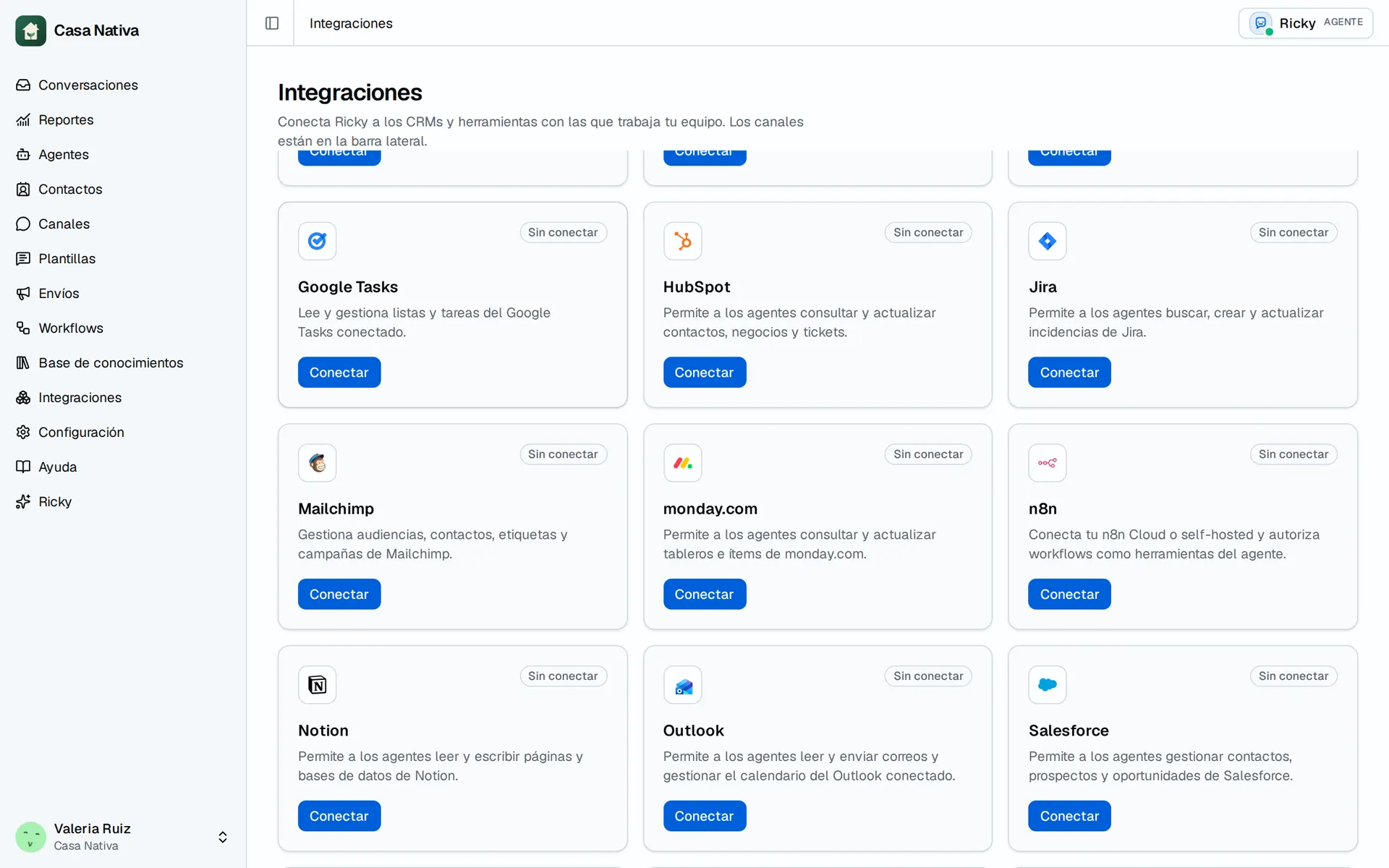
Demo organization: Casa Nativa. Interface shown in Spanish.
Connect and test
- Open Integrations and find Google Drive.
- Select Connect and sign in with a Google account that can access the business files.
- Review the requested permissions and finish authorization.
- Check that the card shows Connected.
- Open Agents, enable the Google Drive tools the agent needs, and select Save changes.
- Ask a test question about a file that account can access and compare the answer with the original.
If a file is missing, check access for the connected account and the agent's enabled tool. If the card says Needs action, use Reconnect. Disconnecting stops agent access through this connection; it does not delete Google files.