Channels
Connect WhatsApp
Connect a WhatsApp Business number and check its status.
Ricky offers two ways to connect WhatsApp.
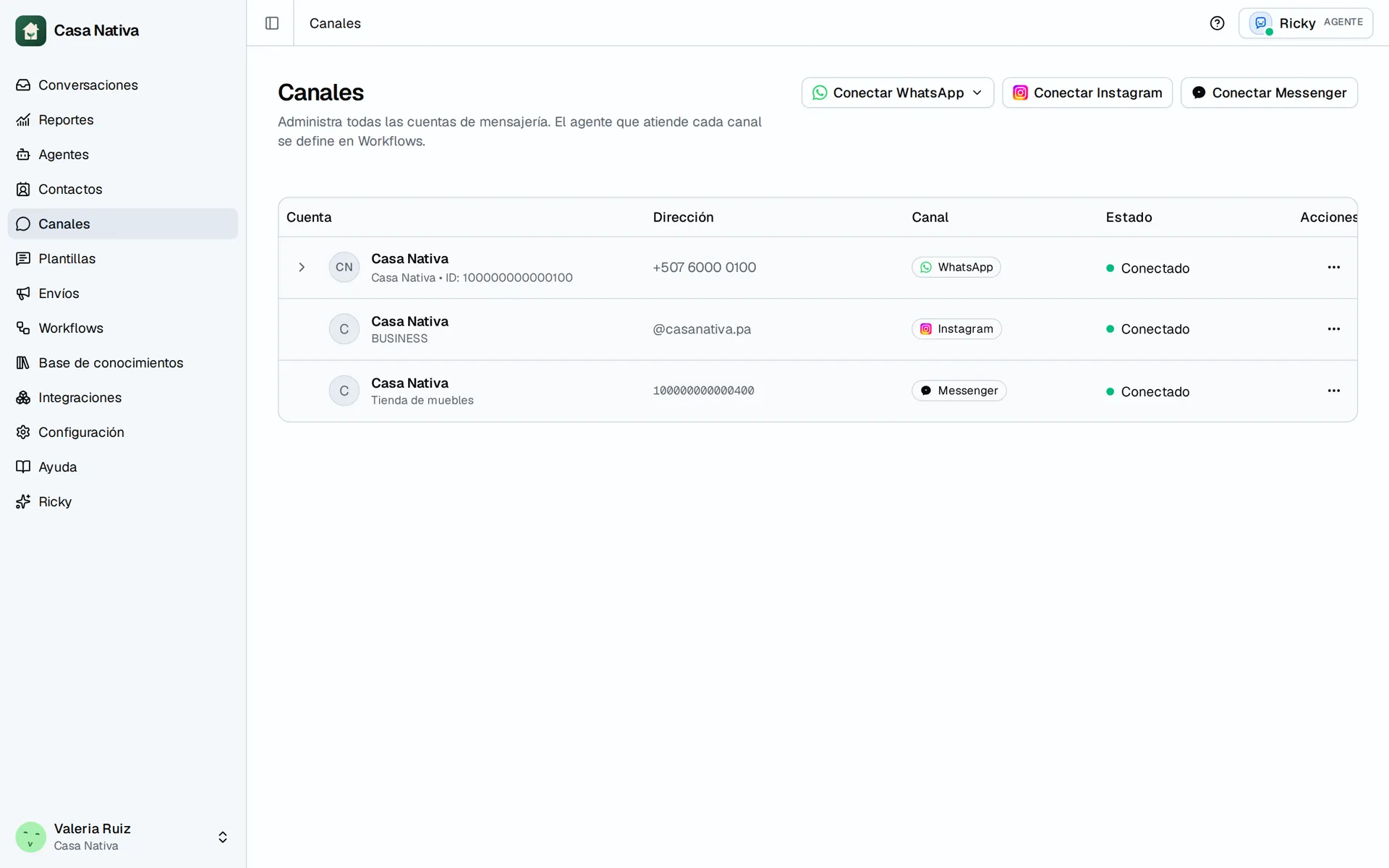
Demo organization: Casa Nativa. Interface shown in Spanish.
Video: open the WhatsApp connection flow. Final authorization happens in Meta and is outside this demo.
| Option | Use it when |
|---|---|
| WhatsApp Business app | You want to keep using the WhatsApp Business app alongside Ricky. |
| API-only number | The number will be managed through the WhatsApp Business Platform. |
Connect the number
- Open Channels and select Connect WhatsApp.
- Select Use the WhatsApp Business app or Connect an API-only number.
- Sign in to Meta.
- Select the business, the WhatsApp account and the number.
- Accept the requested permissions.
- Wait until Ricky shows the number as connected.
Only workspace admins can start this connection.
Set up automatic handling
If you want AI to handle new conversations, create an agent and add a Hand off to an AI agent step in a workflow for this channel. Connecting the number alone does not turn on the agent.
Check the connection
- Send a message from another number.
- Open Conversations.
- Confirm that the message appears under the right business number.
- Confirm that the AI is on.
24-hour window
WhatsApp limits free-form messages outside the customer service window. When the window is closed, the team must use a template approved by WhatsApp.
Available templates appear under WhatsApp → Templates.